
How playednow.com works
Every feature explained — a five-minute quick start first, then all the details to look up.
Part 1 · Quick start
Ready in five minutes. For everyone who just wants to get going.
1The site at a glance
When you open playednow.com you land directly in the posts area. You don't need an account — reading is always possible.
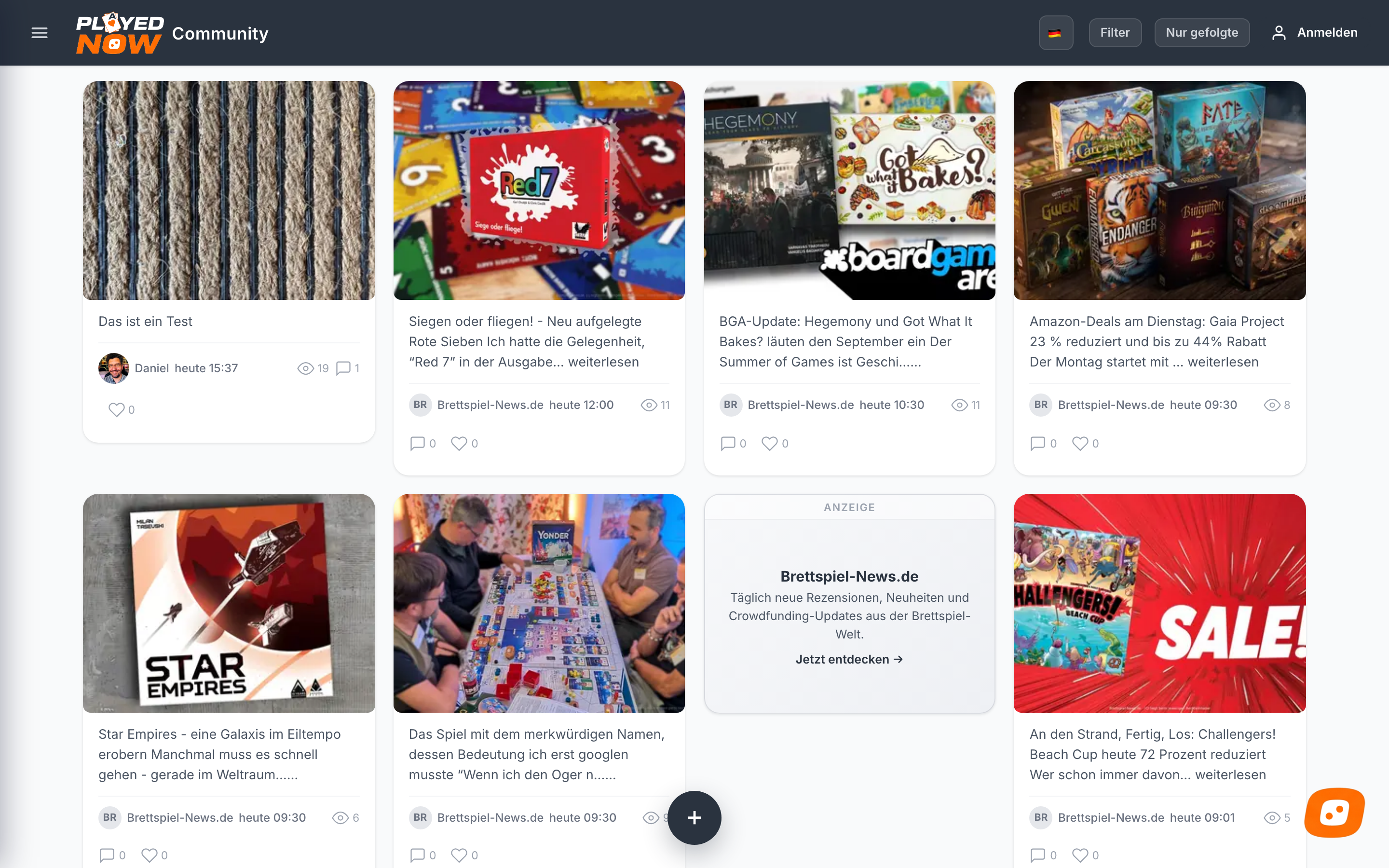
Each tile shows an image, the headline, the author and three numbers: views (eye), comments (speech bubble) and hearts (likes).
The header bar

| Element | Purpose |
|---|---|
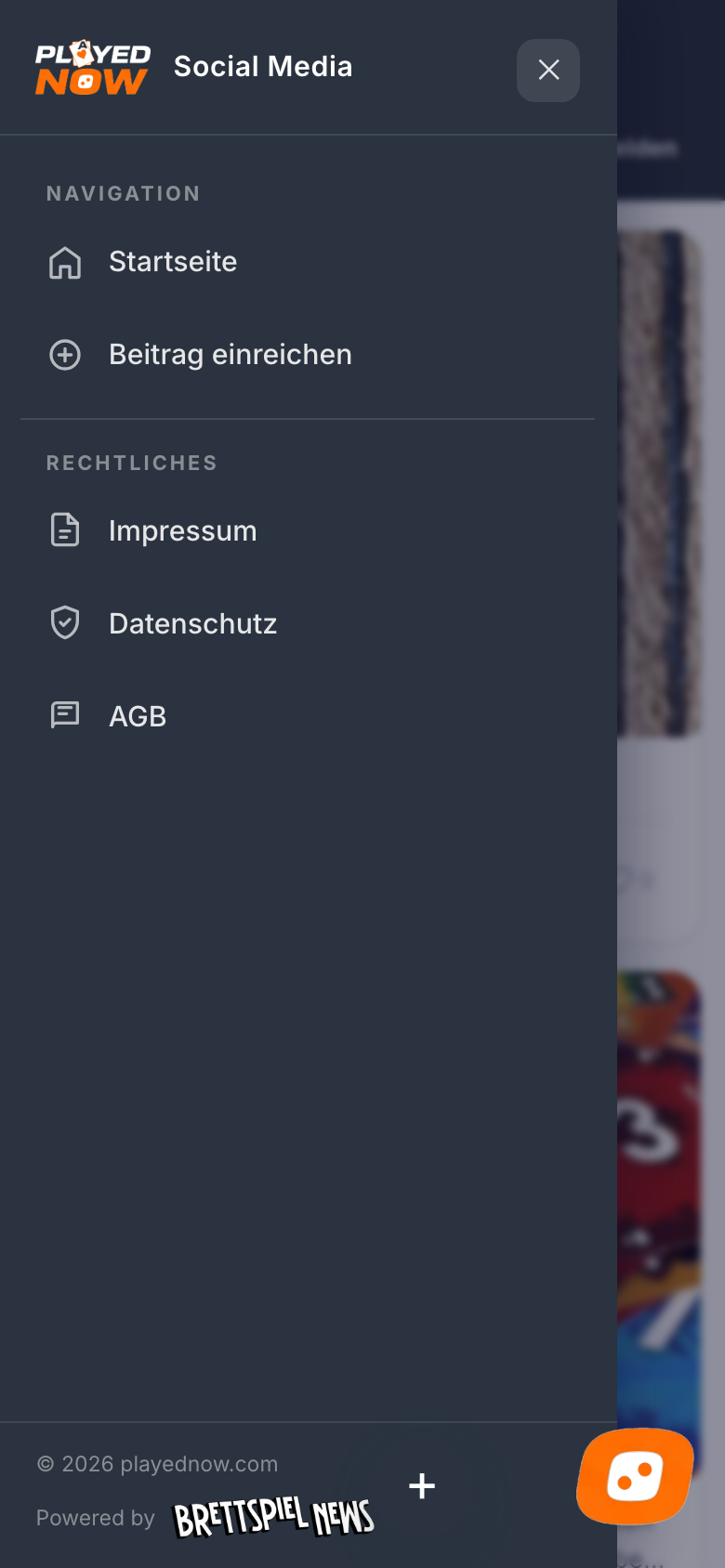
| ☰ Menu | Opens navigation with home, guide, submit a post and the legal pages. |
| 🇩🇪 Language | Switches the site to German, English, French or Spanish. |
| Filter | Search, source, time period and sorting of posts. |
| Following only | Hides everything except posts from people you follow. |
| Sign in | Sign-in fields for email and password, plus the link to register. |
2Ready in five minutes
Four steps that cover everything important once.
- Look around. Click a post, read it, go back. No account needed.
- Create an account. Top right on „Sign in“, then „New here? Create account“. Name, email, password — done.
- Contribute something. Bottom left on the orange +, write text or upload a photo, send.
- Join in. Give a heart or write a comment under any post.
- Use the assistant fullscreen. Too much going on? Tap the four-corner icon at the top of the chat — the assistant fills the whole screen.
3On your phone
The site adapts automatically. Posts appear below each other instead of side by side.
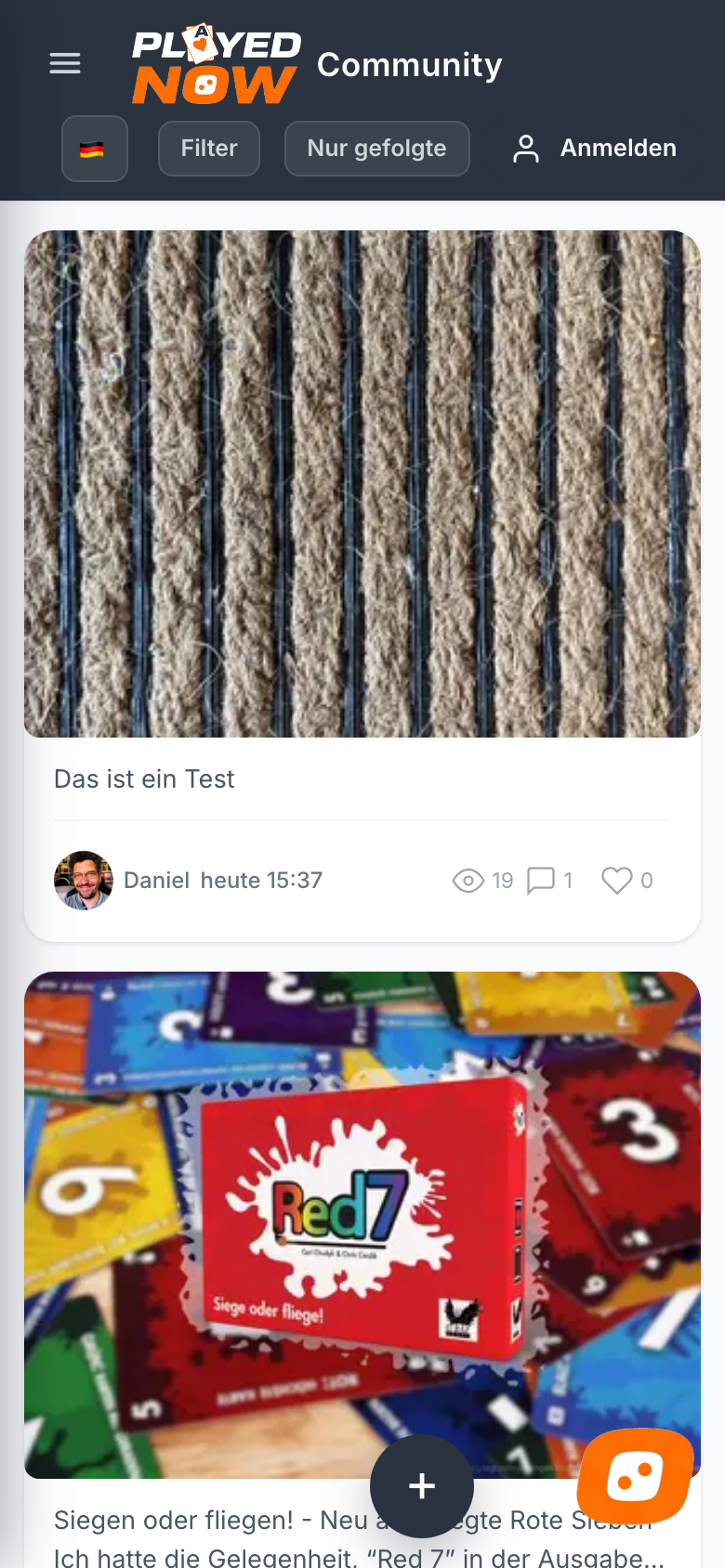
Everything works like on a computer. When submitting you can additionally use the camera or the microphone directly.
Part 2 · All features in detail
Every feature explained individually — for looking things up.
4Account and sign-in
Reading works without an account. For hearts, following and notifications you need one.
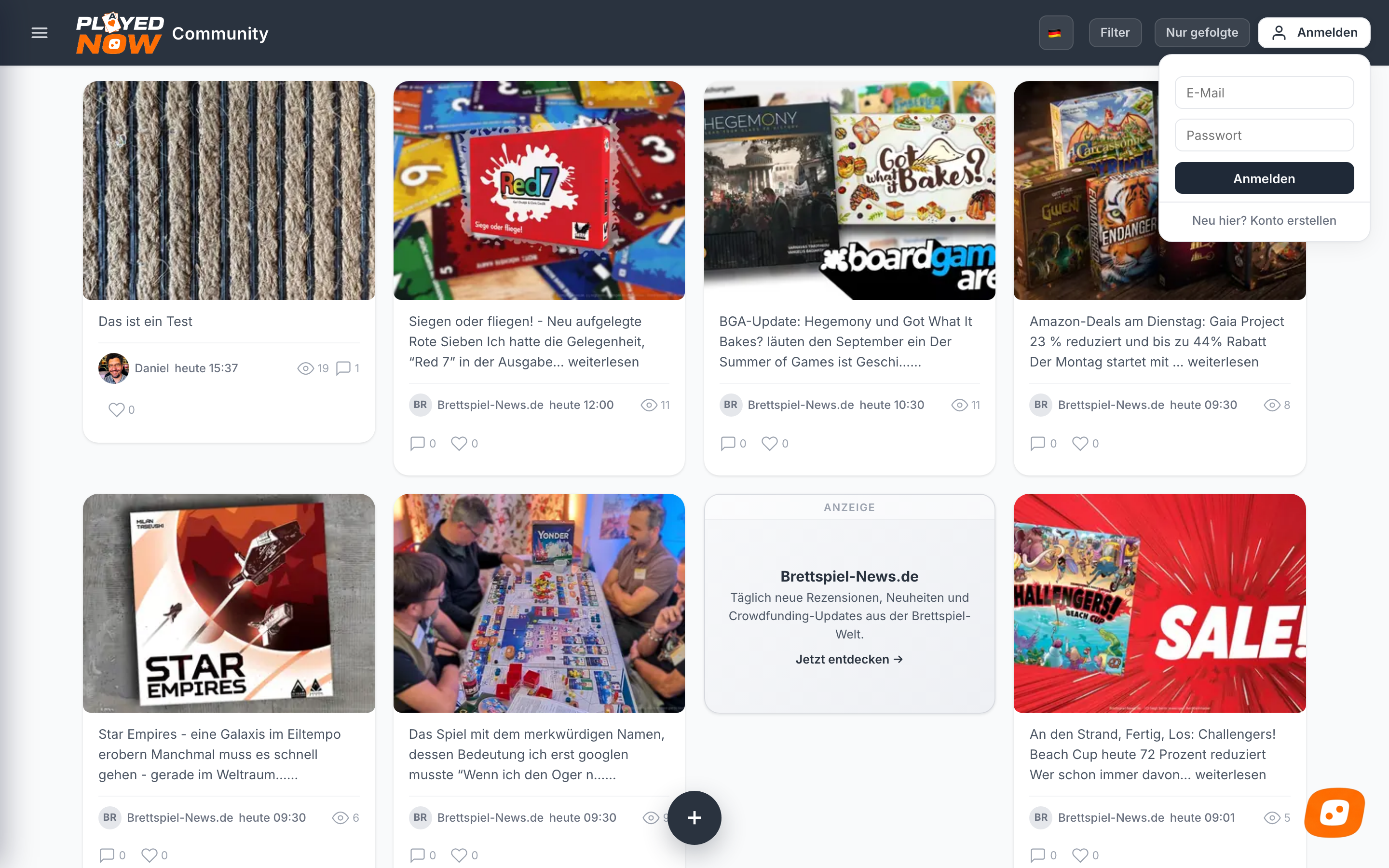
Signing in
A click on „Sign in“ opens the fields directly in the header bar — without changing page.
Registering
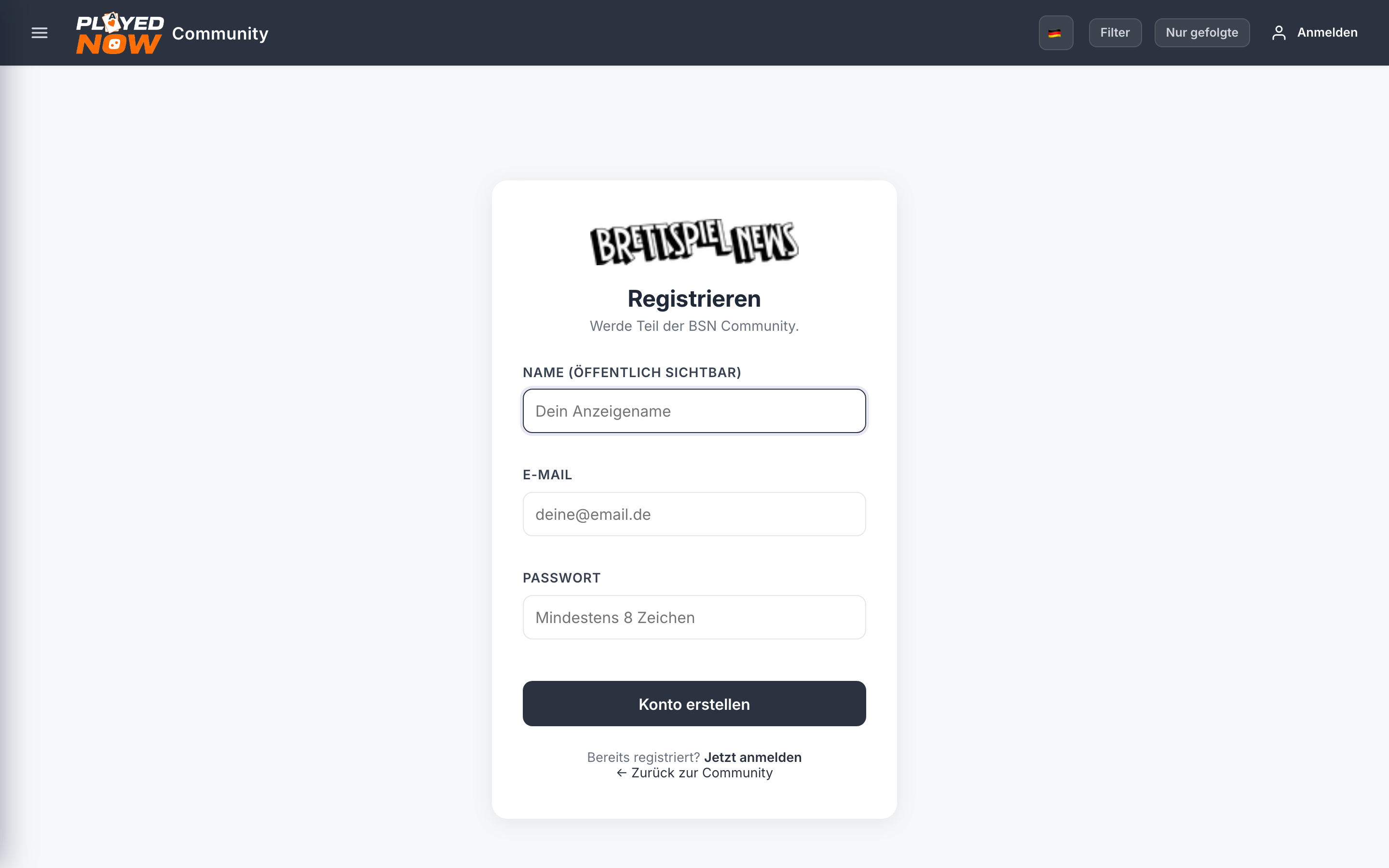
| Field | Note |
|---|---|
| Name | Publicly visible. Shown later on your posts and comments. |
| For sign-in and notifications. Not public. | |
| Password | At least 8 characters. |
Forgot your password?
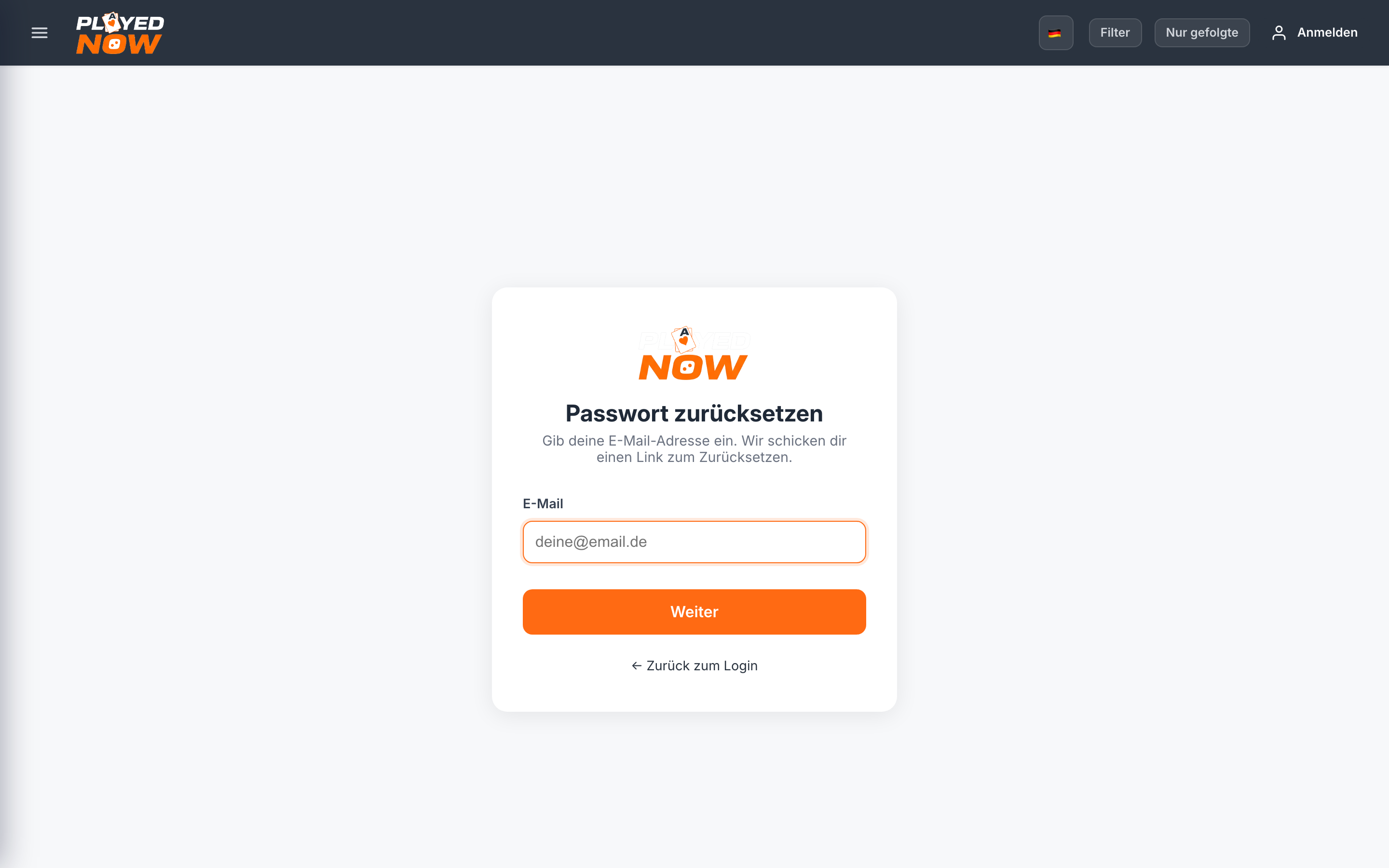
Lost your password? Use „Forgot password?« on the login page: click it, enter your e-mail address — we'll send a reset link. With that you choose a new password.
Change your e-mail address
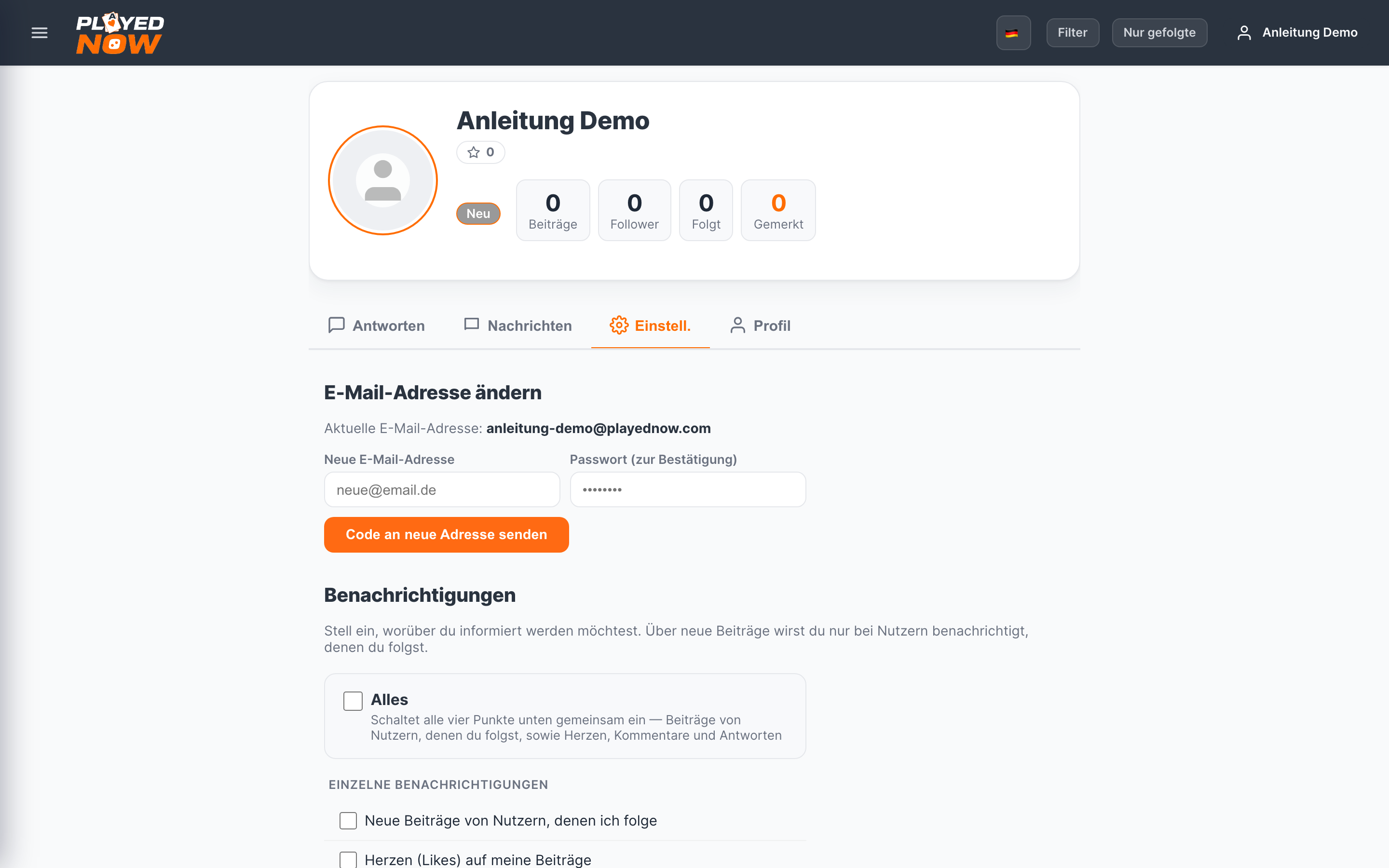
The new address only becomes active once you enter the code from the mail sent to the new address. This makes sure it really belongs to you — and nothing is lost if there was a typo.
5Reading posts
A click on a tile opens the full post.
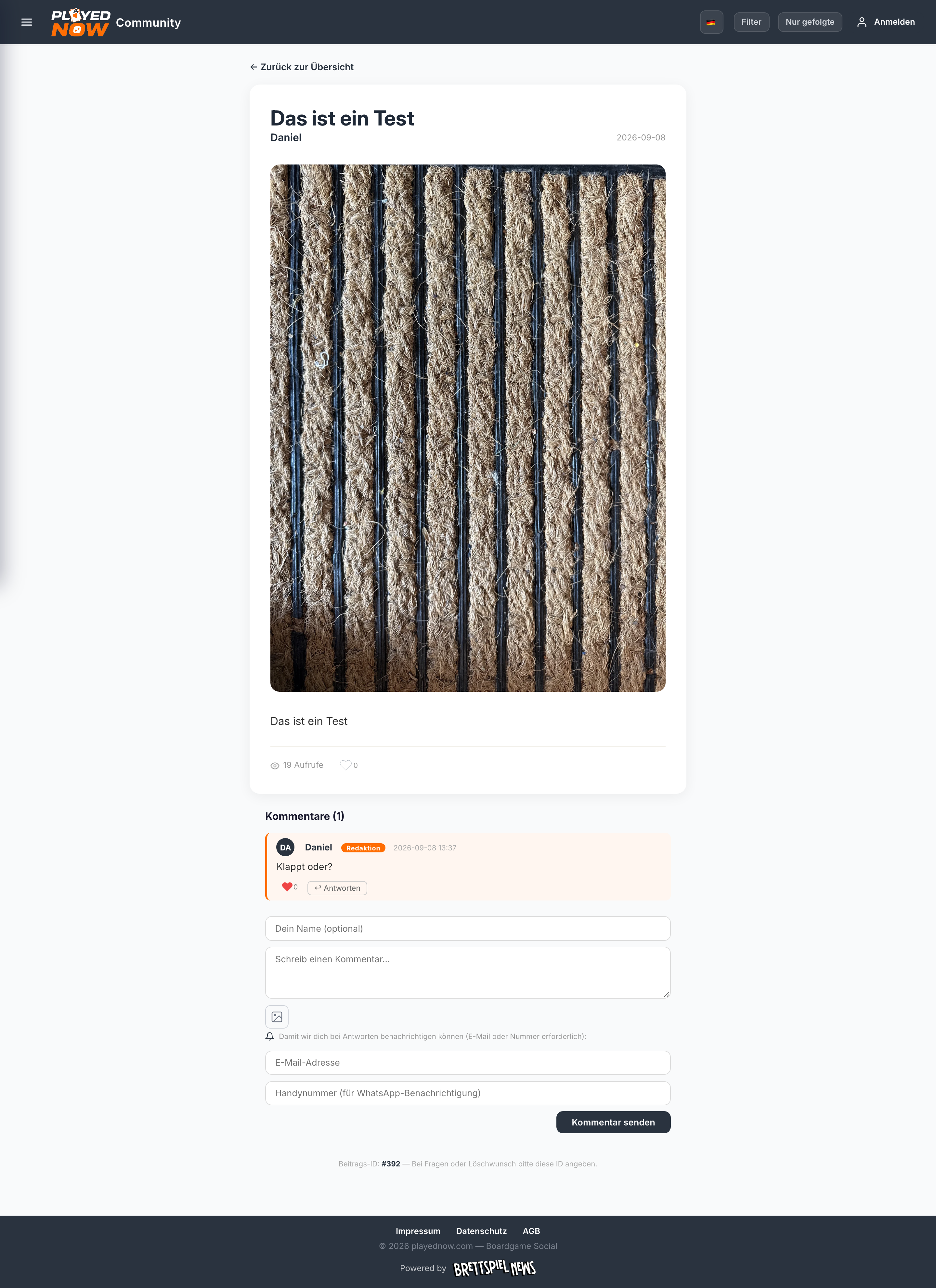
Every post has a post ID at the bottom (e.g. #392). Please quote this number for questions or deletion requests.
Where posts come from
| Source | Meaning |
|---|---|
| Community | Submitted by users. |
| News | Taken automatically from Brettspiel-News.de. |
| Advertisement | Promotional tile marked as ANZEIGE. |
6Hearts, comments, replies
The comment area sits below every post.
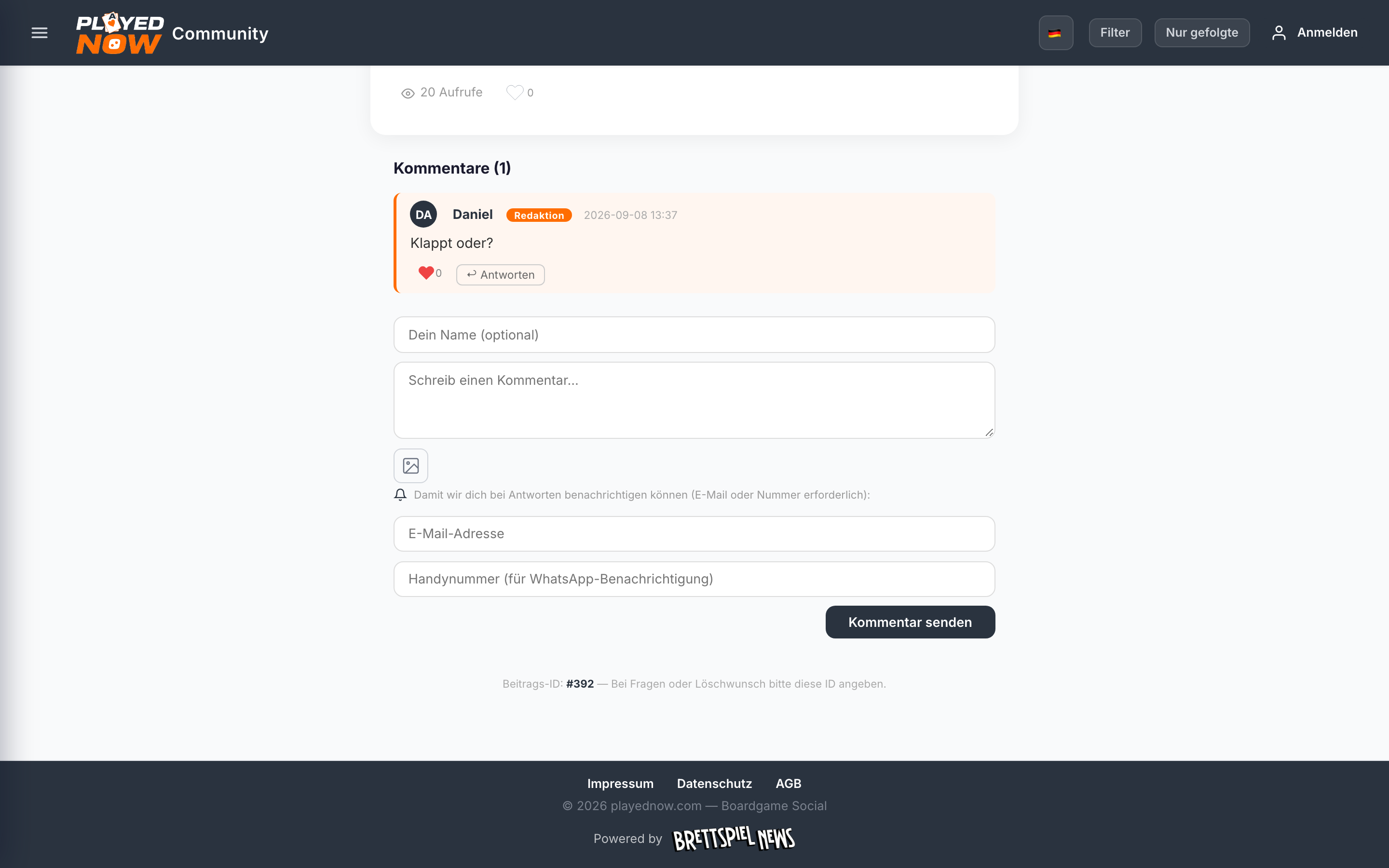
- Give a heart. Click the heart — on the post or on an individual comment. Clicking again takes it back.
- Comment. Text into the „Write a comment…“ field, optionally attach an image, then „Send comment“.
- Reply. „↩ Reply“ on a comment attaches your answer directly to that comment.
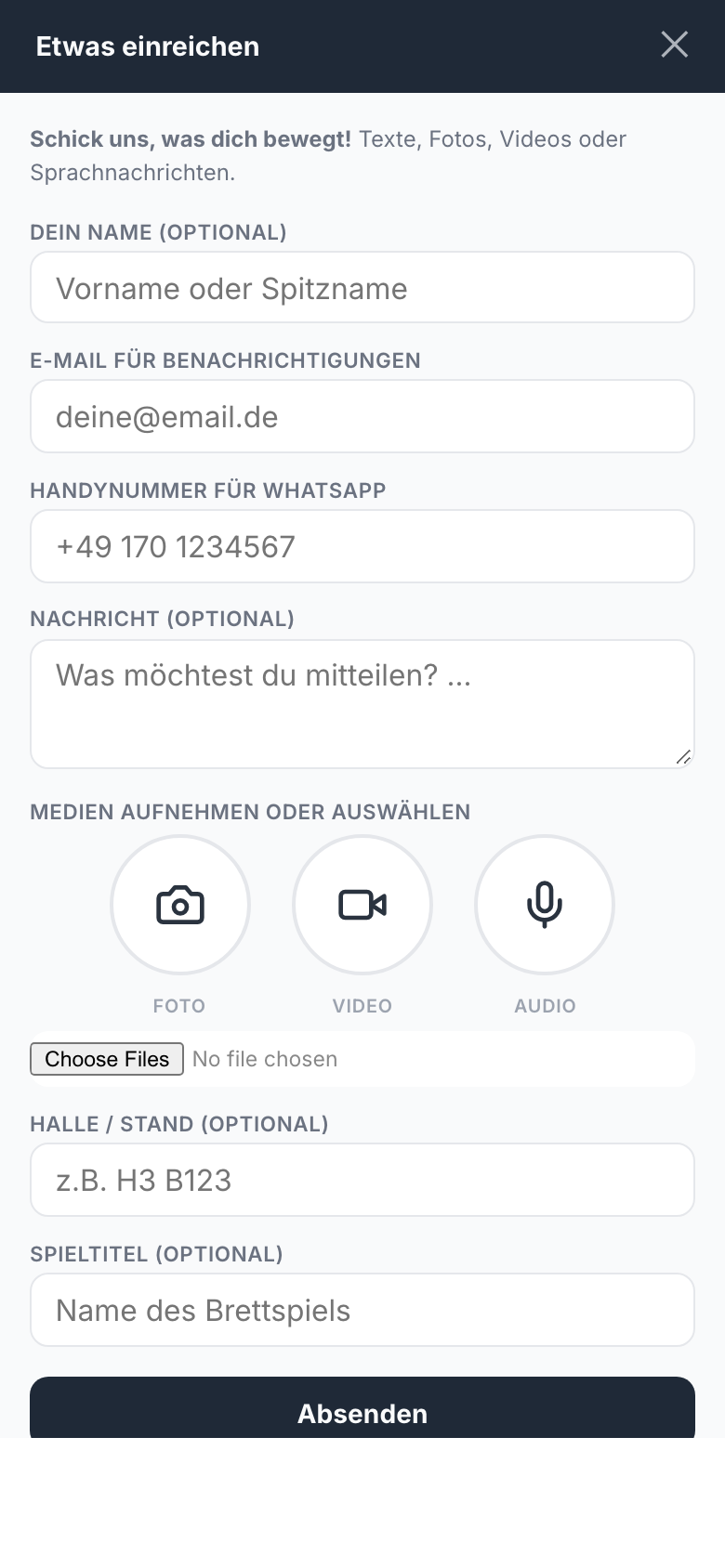
7Submitting your own post
Via the orange + at the bottom left — or directly via playednow.com/?submit=1.
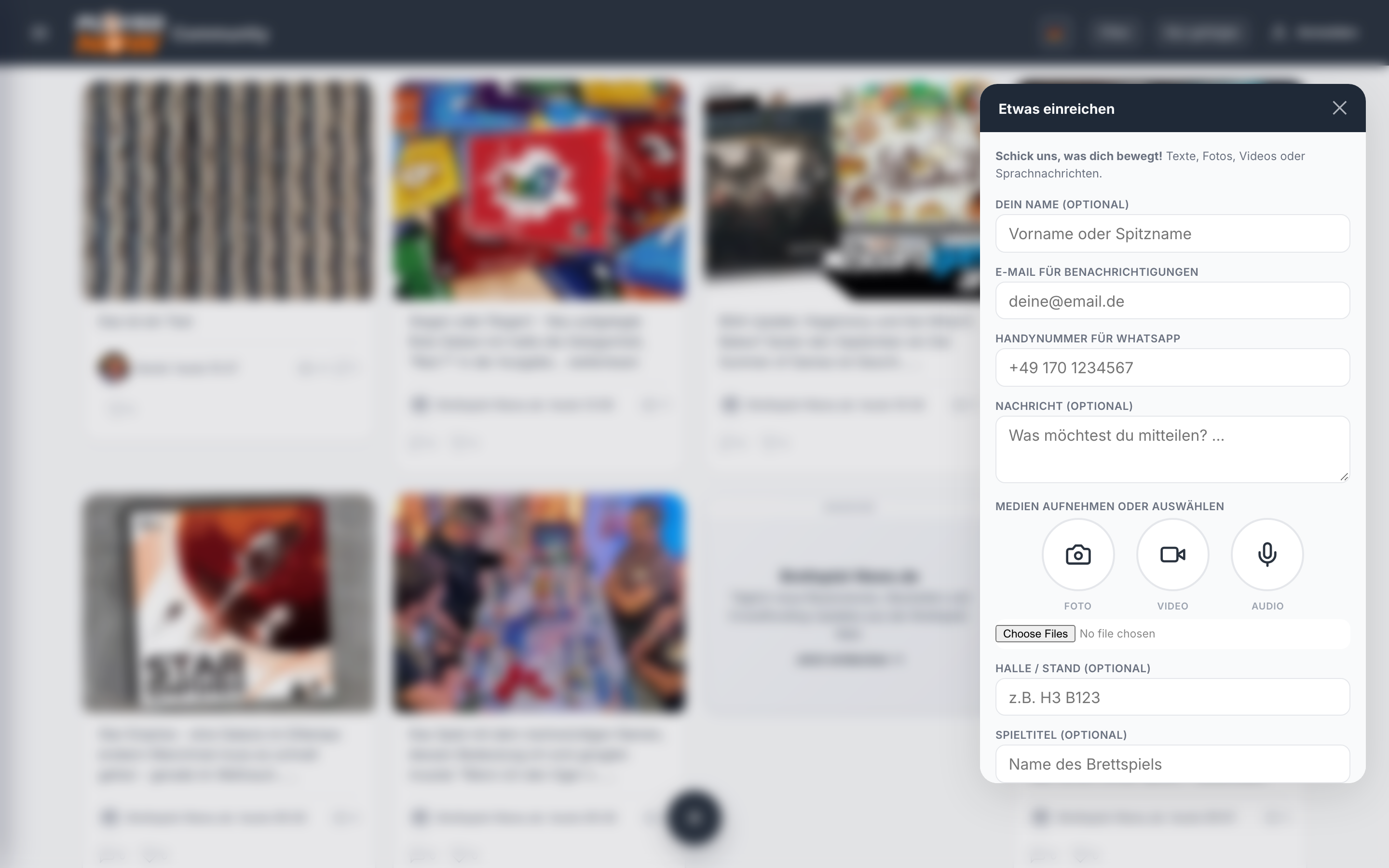
| Field | Meaning |
|---|---|
| Your name | Optional. Without it the post appears without a name. |
| For notification when someone responds to your post. | |
| Message | The actual text. |
| Photo / video / audio | On mobile the camera or microphone opens directly, on a computer the file picker. |
| Hall / booth | For trade fair visits, e.g. H3 B123. |
| Game title | Name of the board game. Makes the post findable via the filter. |
8Filter and search
Via the Filter button in the header bar.
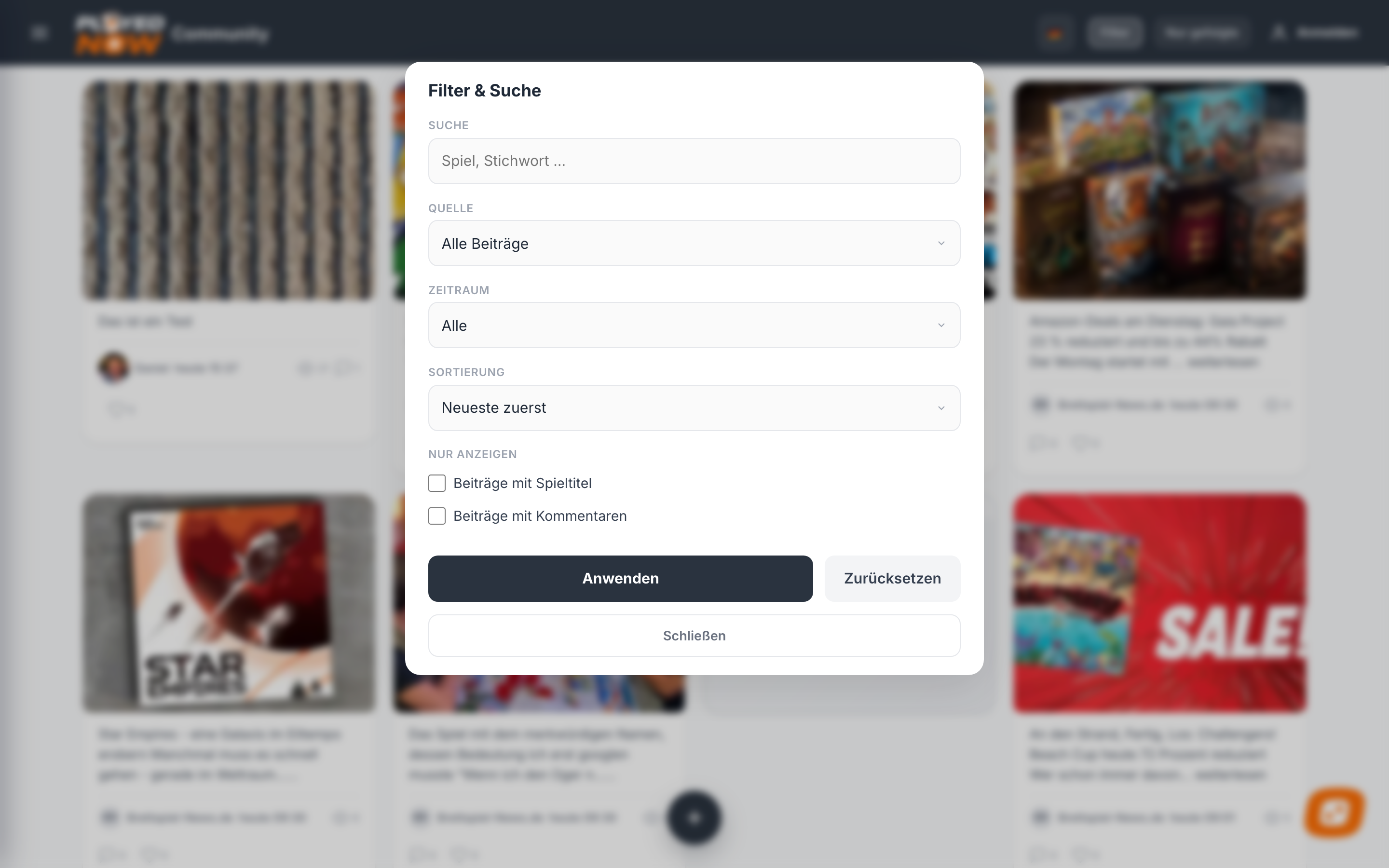
| Setting | Options |
|---|---|
| Search | Free text for game or keyword (max. 80 characters). |
| Source | All posts · Community only · News only |
| Period | All · Last 24 hours · Last 7 days · Last 30 days |
| Sorting | Newest first · Most popular · Most viewed · Most discussed |
| Show only | Posts with game title · Posts with comments |
Apply takes over your selection, Reset restores the initial state.
9The board game assistant
The chat bubble at the bottom right opens an assistant for board game questions.
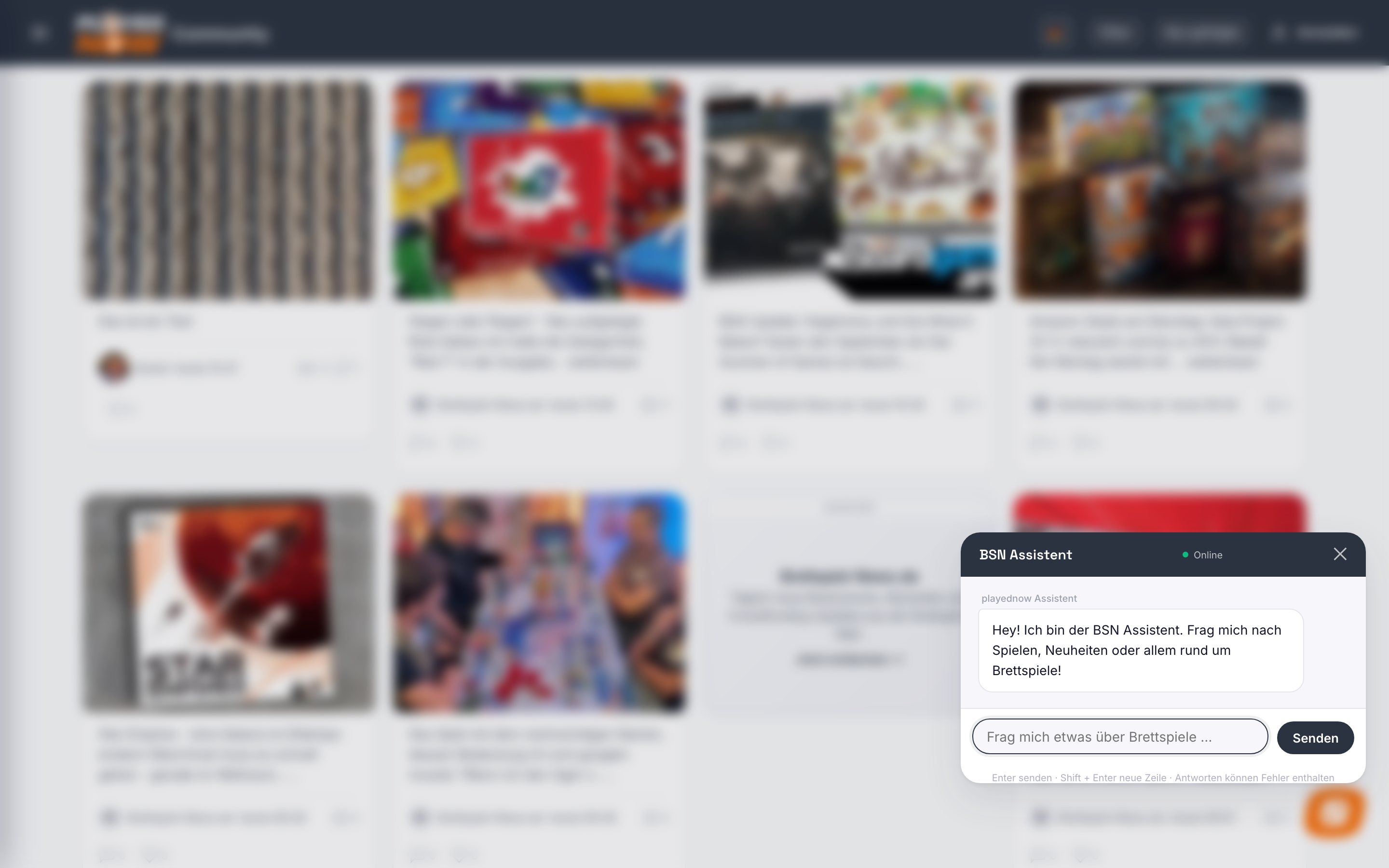
Type your question and press Send. Enter sends, Shift + Enter creates a new line.
The assistant fullscreen
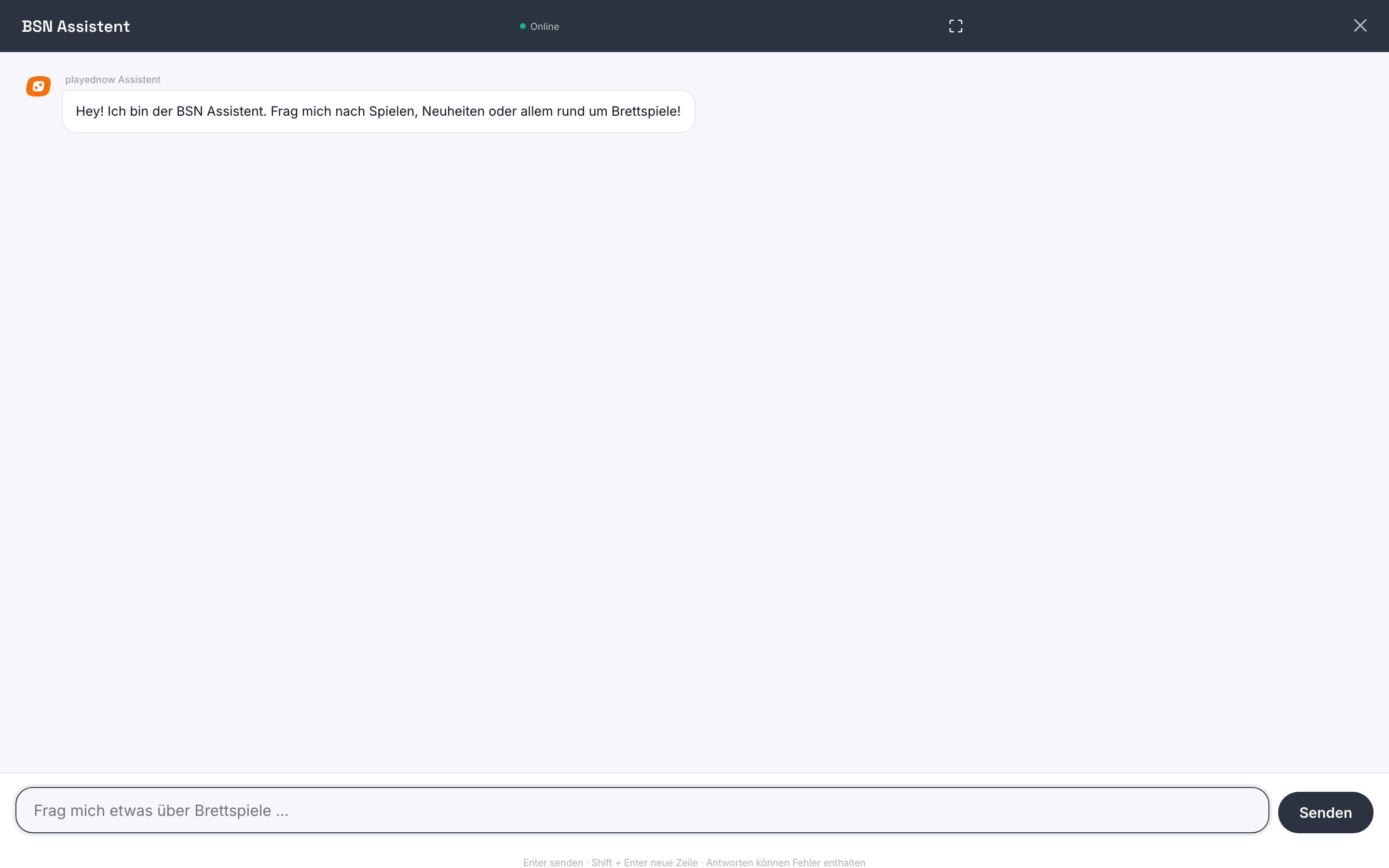
On the phone, the assistant is normally a narrow strip over the content. In fullscreen mode it takes over the whole screen — enough space for detailed answers with many linked posts.
Questions about SPIEL Essen 2026
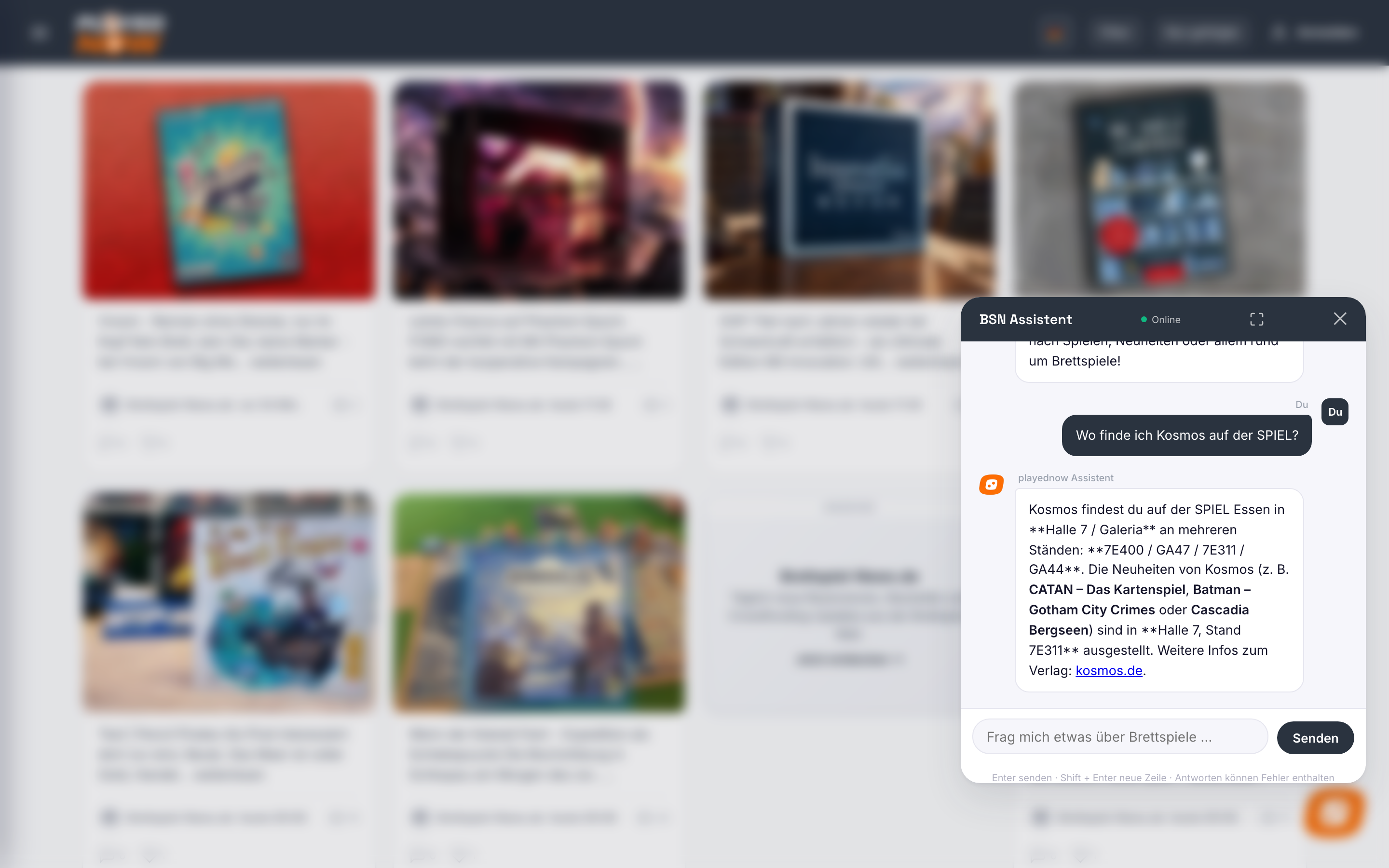
For SPIEL Essen 2026, the assistant knows more than 900 exhibitors and around 1,300 novelties at the fair — including the exact position where they are. It's topped up with the real sold-out reports and highlights that our editorial team and the community submit live from the show floor.
10Notifications
Signed-in users see a bell icon with all reactions.
You are notified about:
- New posts from people you follow
- Hearts on your posts
- Comments under your posts
- Replies to your comments
Each type has its own coloured icon plus a time such as „5 min ago“. An entry only disappears once you actually click it.
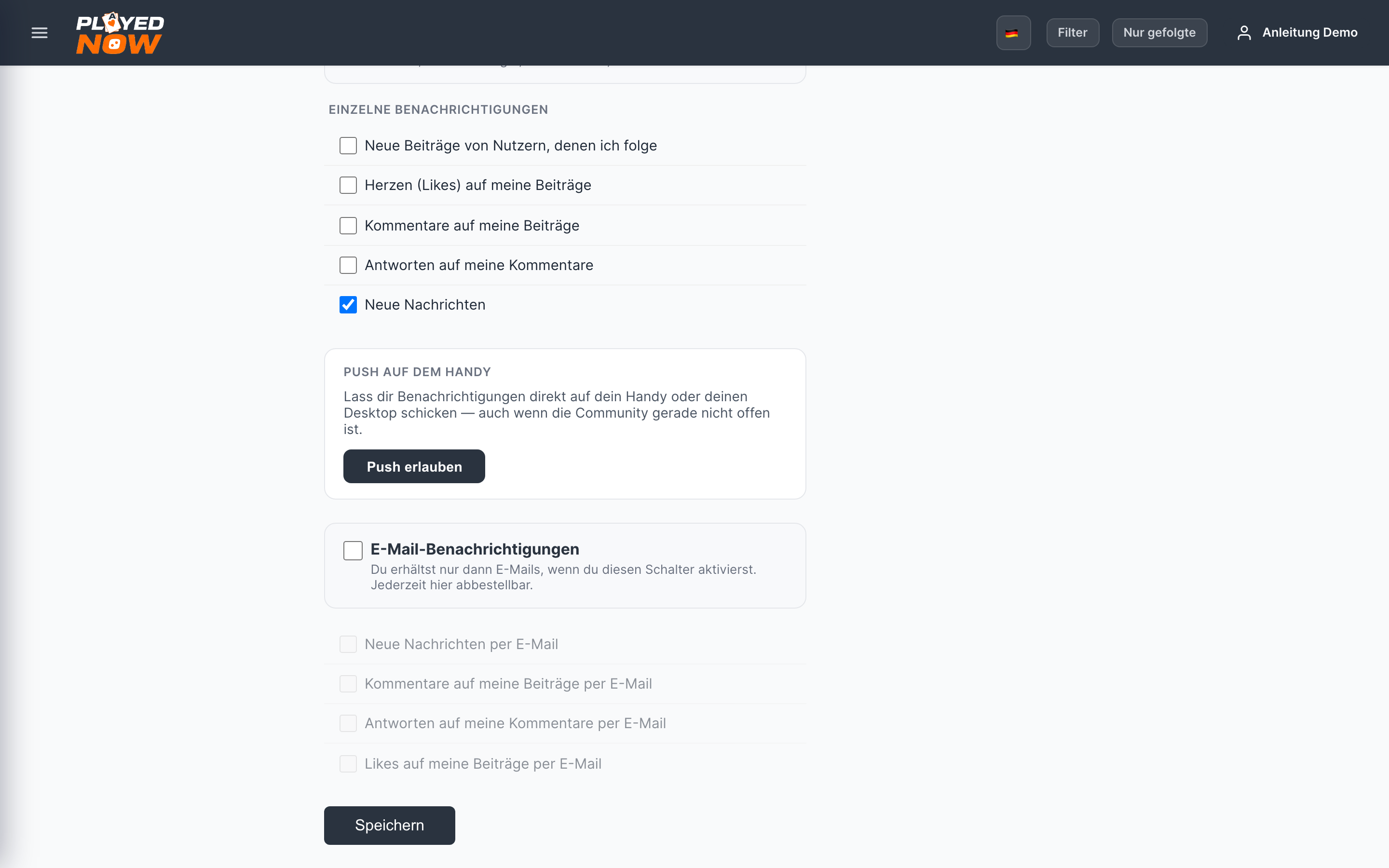
Push notifications on your phone
If you want it truly convenient: „Allow push« in the notification settings. Then you get a message straight to your phone or desktop — even when the page isn't open. You can switch it off again at any time with „Disable push“.
E-mail notifications
Prefer a mail instead of checking your phone all the time? At the bottom of the settings, activate the E-mail notifications switch — and choose exactly what you want to be told about (hearts, comments, replies, new messages). Everything can be switched back off here at any time.
Messages
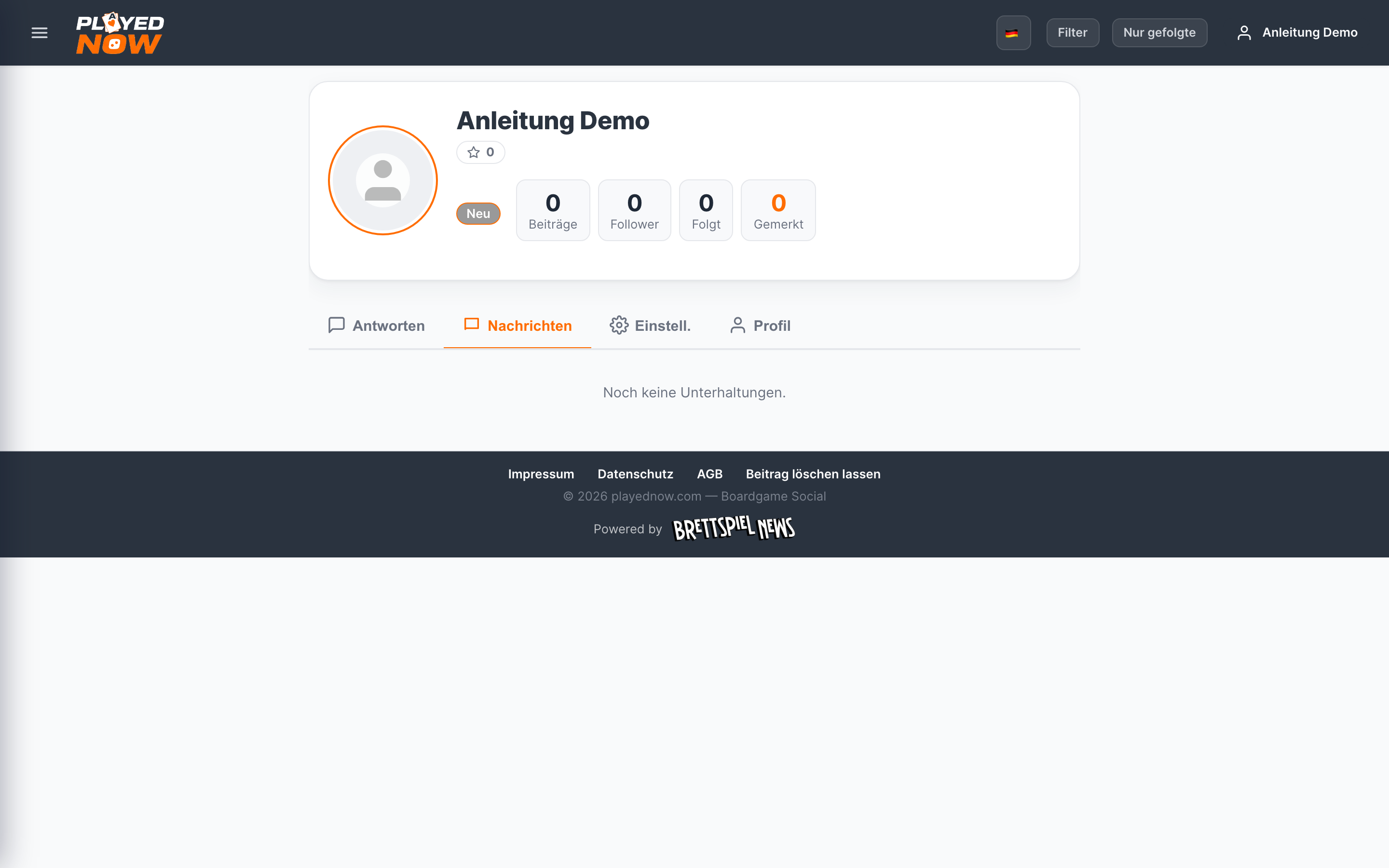
The bell at the top right shows messages, hearts, comments and replies. One click shows everything at a glance. You'll also find your own messages in the profile under the Messages tab — there you can reply, see the thread, and (if needed) block someone.
Request a post be removed
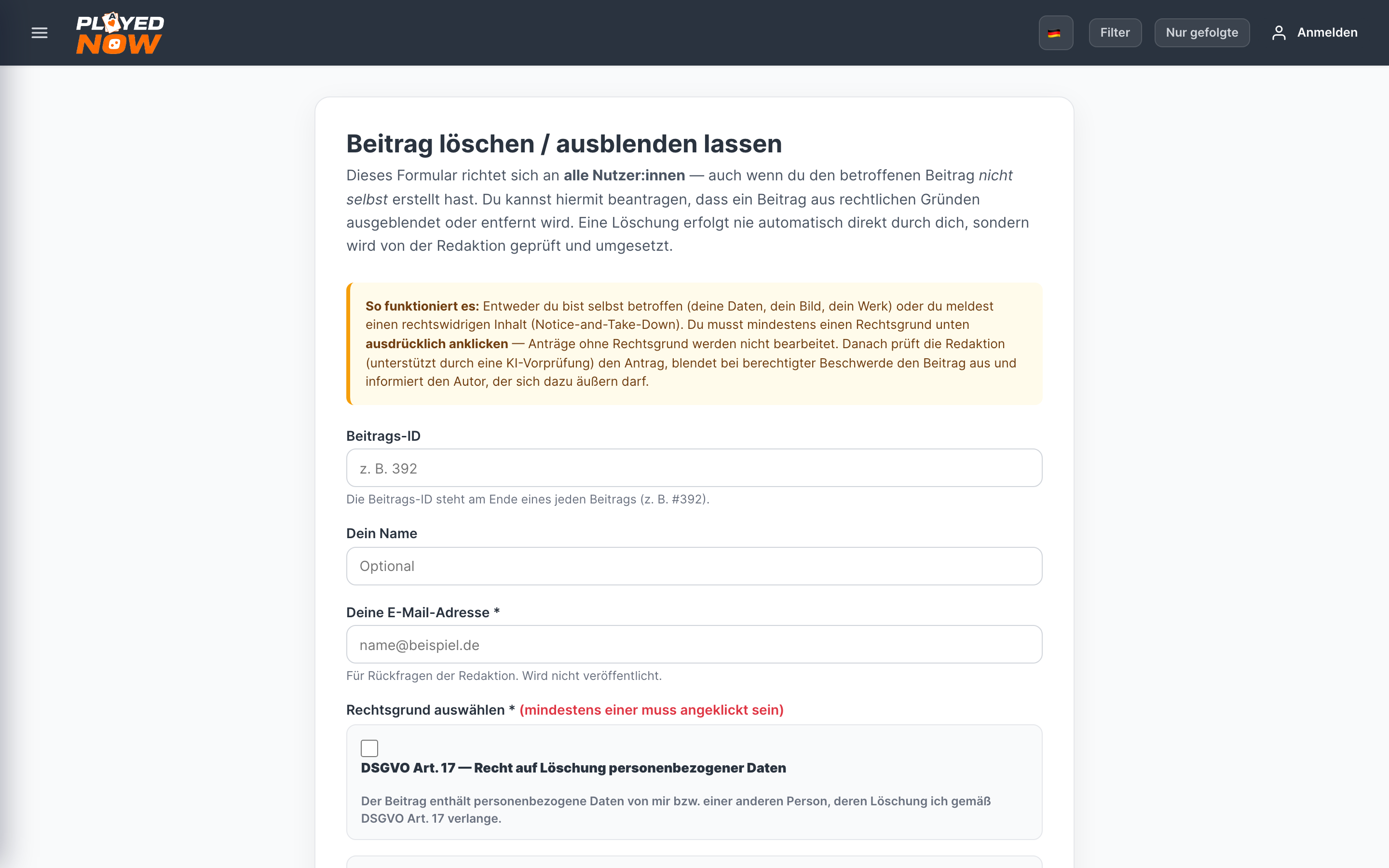
For legal reasons (e. g. personal rights, inaccurate information, or copyright) there is the „Request post removal« form in the menu. You briefly describe what it's about — we check it, hide the post in the meantime, and reply to you. The author of the post is notified so they can give their side.
11Menu and language
The menu
Changing language
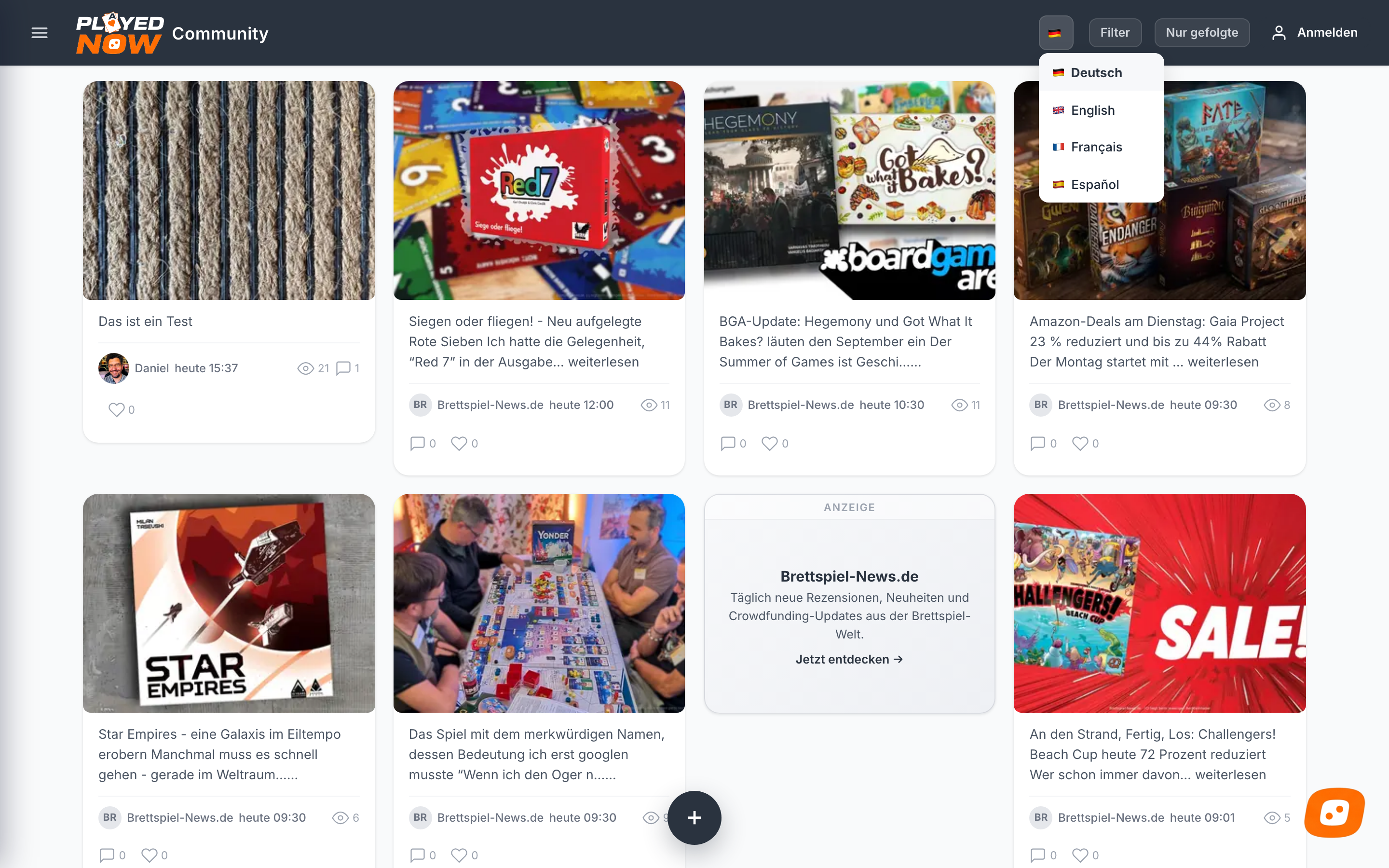
Your choice is saved and still applies on your next visit. Alternatively via address: playednow.com/?lang=en
Part 3 · Frequently asked questions
12Questions and answers
Do I need an account?
Not for reading, commenting and submitting. Yes for hearts, following and notifications.
Can I have a post deleted?
Yes. Send the post ID from the end of the post (e.g. #392) together with your request to the team.
Why don't I see my post straight away?
Posts from senders who are not signed in are reviewed before publication.
What does playednow.com cost?
Nothing. The site is financed through the tiles marked as ANZEIGE.
My language is not applied
The setting is stored in a cookie. If the browser deletes cookies, the site returns to German. Then choose again via the flag icon.
Is the SPIEL Essen coverage complete?
Yes — the assistant knows more than 900 exhibitors and around 1,300 novelties at SPIEL 2026 with hall and stand. On top of that come the real trade-fair reports and sold-out notes from the community — live from the show floor.
All clear? Then off you go.
To the home page